

 Cart
CartUpgrade prices are 70% off. Upgrade your outdated version and get up to date with the latest AI features.
The latest Proposal Kit Wizard software includes an easy-to-use AI Writer that solves the decades-old challenge of creating custom proposals—no more hunting for samples that never match your exact situation, struggling to write your own content filling in templates, or hiring high-priced proposal writers. Now, Proposal Kit's AI Writer does the work for you, generating professionally tailored proposals based on your company, client, and project that are structured, formatted, and ready to edit in minutes. It can also convert your Word documents into PowerPoint slideshows.
If you already have Proposal Pack Wizard V18.x installed, download the V18.7 patch upgrade here.
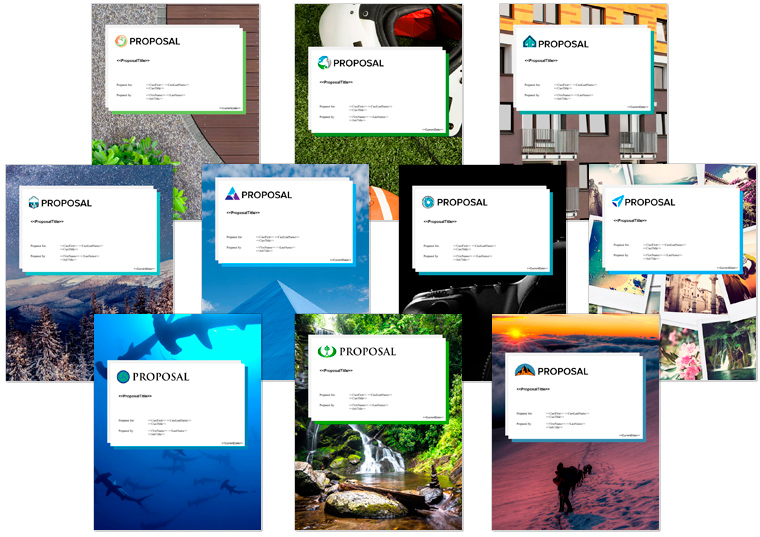

- The major addition to the new version of the Proposal Packs is the introduction of the AI Writer added to the Proposal Pack Wizard V18 software that is bundled with the Proposal Packs.
- The previous major addition to the Proposal Packs was the introduction of the line item quoting system added to the Proposal Pack Wizard V17 software that is bundled with the Proposal Packs.
- Changed all Twitter references to X.
- Upgraded the installers certificates to an EV level code signing certificate to work with Microsoft's recent security updates.
- Added 177 new proposal templates increasing the total number of templates to over 2200. Templates added: Business Case, Value Proposition, Doing Business with Us, Current Conditions, Outcomes, Desired Outcomes, Manufacturing Plan, Rendering, Imaging, Streaming, Lean Development, Decommissioning, Deregulation, Mission Planning, Dropshipping, Sponsorship, Disaster Recovery, International Response, Rapid Response, Autonomous Operation, Tracing, Defunding, Asset Allocation, Event Management, Contract Management, Task Management, Channel Management, Opposition Research, Monetization, Resettlement, Preproduction, Social Learning, Bioremediation, Physical Exam, Vetting Process, Fact Checking, Militarization, Therapy, Culture Change, Voice Control, Adaptive Learning, Knowledge Transfer, Technology Transfer, Augmentation, Synchronization, Resource Sharing, Crisis Management, Public Notices, Expert Opinion, STEM, Diagnosis, Historical Significance, Trending Technologies, Key Drivers, Use Cases, Performance Review, Eco-Footprint, Interagency, Directives, Terrain, Commercial Market, Consumer Market, Horizontal Integration, Vertical Integration, Trade, Fair Trade, Trade Agreements, Community Interests, Epidemic, Pandemic, Public Safety, Geopolitics, Ecological Impact, Propaganda, Press Coverage, Survivability, Performance Characteristics, Period of Performance, Distance Learning, Trials, Service Schedule, Site Safety, Adaptive Intelligence, Military Grade, Consumer Grade, Wholesale, Security Breach, Counterfeiting, Social Unrest, Conflicts of Interest, Hostilities, Health Issues, Business Dissolution, Cryptocurrency, Smart Home, Invasive Species, Power Systems, Servers, Spare Parts, Interface, User Interface, Consumables, Hub, Prosthetics, Refugees, Sphere of Control, Sphere of Influence, Your Rights, Environmental Protection, Disruptive Innovation, Disruptive Technology, Equity and Inclusion, Autonomy, DevSecOps, Home Care, Pest Control, Estate Planning, Space Commercialization, Space Exploration, Space Travel, Information Technology, Quantum Computing, Deep Learning, Augmented Reality, Mixed Reality, Blockchain, Metaverse, Digital Delivery, Biofabrication, Biomimicry, Biosecurity, Genetic Modification, Personal Care, Managed Care, Telemedicine, Advance Directives, Surgery, Retirement Planning, Grass Roots Movement, Gun Control, Human Augmentation, Bioengineering, Everything as a Service, Internet of Behaviors, Financial Services, Border Control, Technology Requirements, Payment Plan, Past Experience, Past Projects, Company Profile, My Story, Our Story, Managed Services, Trade Partners, Influencers, Volunteers, RACI Matrix, Consulted, Informed, Advisory Panel, Review Board, Key Personnel, Aim Statement, Guiding Principles, Our Promise, Codes, Phase 1, Phase 2, Phase 3, Phase 4, Phase 5, Phase 6, Phase 7, Phase 8, Phase 9, Phase 10
- Added 1 new calculator spreadsheet – Service Schedule Calculator.
- Updated Breakeven Analysis Calculator spreadsheet with line item breakdowns for the product costs.
- Updated 3 schedule templates to fix a mismatch between references end date columns in the matching Excel spreadsheet: Schedule, Install Schedule and Implementation Schedule.
- Changed font style for the <<Company>> tag in the Back Page to Proposal Kit Sub Header 1 to increase the font size.
- Added a page header logo offset field for the Wizard to be able to fine tune the positioning of the chapter header logo when the stock chapter graphics are converted to text versions.
- Added new <<SocialMedia#>> tags to the About Us, Company History, Contact Us, Company Information, Back Page, Back Page Generic and Social Media templates. The bundled Wizard software also adds support for the new social media tags.
- All 200 samples have been rebuilt. Most samples now use newer photo based Proposal Pack design themes. Some minor fixes were made to spelling and grammar errors in few samples.
- Bundled Novice Wizard software has been updated to latest version
- Updated the PageHeader_NOTEXT.png, Project_NOTEXT.png and Description_NOTEXT.png graphics to remove extra white space after the logo. This is to support a new Wizard software feature that will swap out graphic versions of page chapter headers and Title Page graphics with editable text but still retain the logo design theme graphic.
- Fixed a grammatical error in the instructional text in a couple templates (Contract and Terms, Terms and Conditions).
- Updated the text in the Sources of Funds template so the Wizard can detect and delete the red instructional text.
- Increased width of unit price and extended price and total columns in QuoteWerks alternate layout files to accommodate larger dollar amounts without wrapping.
- Updated all the cost related chapter templates to adjust the table sizes to look better when used with page borders.
- Left aligned header text in all the cost related chapters to make the tables display consistently with tables in other templates.
- All the photo designed Proposal Pack design themes have been updated to separate out individual photographs in the Title Page and Back Page as individual picture objects. This is coupled with a new feature in the Expert Edition of the Wizard software that allows you to have the Wizard swap out any or all of the stock design photographs with your own by just making a new image and saving it in the Wizard’s MyGraphics folder with the appropriate name.
- The Title Page, Back Page and Watermark-Body templates have been updated in every Proposal Pack to remove hidden legacy Word shape objects that could cause the ordering of some shapes to be out of place when using some Expert Edition features such as generating documents for use with QuoteWerks or using some of the Expert Edition custom branding features.
- The Title Page templates in all bundled Title Page Packs that come included with Proposal Pack and Proposal Kit Professional or that are purchased separately have also been updated to remove hidden legacy Word shape objects.
- The V18 conversion of all templates from legacy Word .doc formats to current Word .docx formats uncovered an obscure Word bug in the templates that caused the ZOrder variable to be invalid numbers in some cases. While this normally does not cause a problem, in some cases such as turning on Expert Edition features to import custom graphics or generate documents for use in 3rd-party systems the ZOrder bug could cause shape objects to change their ordering and go behind or in front of other shapes out of order. This update resets the ZOrder to correct values in all Title Page and Back Page templates. This only affected a small number of more complex Proposal Pack design themes however all of them have been updated.
- Word icons have been updated to match the latest updates from Microsoft.
- Alternate versions of cost table layout templates added for use with QuoteWerks.
- Minor updates to instructional text wording in some templates.
- Minor updates to URLs in the browser interface.
- All Word documents have been converted from the legacy Word 2003 .doc format to the current Word .docx format.
- All Excel spreadsheets have been converted from the legacy Excel 2003 .xls format to the current Excel .xlsx format.
- The Wizard software has been updated to remove all legacy Word 2003 support and now only works with the current Word and Excel file formats.

- Added a Risk Analysis Report to the RFP Analyzer.
- Added an Eligibility Report to the RFP Analyzer.
- Made formatting improvements to all the RFP Analyzer reports such as more white space in table cells and color coding importance levels.
- The Line Item Quoting system adds checks on strings if the overflow the maximum allowed lengths and prompts user to correct them.
- OpenAI models have been updated to use GPT 5.2.
- Anthropic Claude Opus has been updated to 4.5.
- Google Gemini 3 (Preview) has been added in addition to the 2.5 models.
- Future proofing added code changes for when Microsoft deprecates the VBScript.RegExp in 2026/2027.
- Added videos link to the SEO Tools screen.
- Added the ability to lock a Line Item Quote database to prevent changes to it.
- Fixed Line Item Quote issue with not being able to turn off the visibility flag on a category.
- Fixed formatting issue where subheader lines in Word document with hidden leading vertical tabs would cause a row to not be converted back into a subheader Word style.
- Added a new SEO Tools button into the Wizard’s project screen. The Wizard can be used to run SEO Audits on a target URL and phrase. The AI Writer system will run an audit comparing the target URL to the top 5 ranking pages on the phrase and will generate an Excel spreadsheet and report. The spreadsheet will contain a list of phrases related to the top 5 pages and the target URL, how many phrases are in the target page and how relevant each phrase is.
- Added MINIMUM(x,y) and MAXIMUM(x,y) functions into the line item quote system to return the min/max of two values. Values can also be global variables.
- Added a ROWS(fieldcode,x,y) function to the line item quoting system. This function will sum a column using a partial list of rows from x to y. For example, if you have a category with 20 line items of data. ROWS(fieldcode,2,10) will sum only the values from rows 2 to 10.
- Added the ability to lock the non-data entry cells of an exported spreadsheet in the line item quoting system. This will prevent someone from editing the code, label and calculated values in an exported line item quote spreadsheet. This is useful when you have users editing the Excel spreadsheets to be imported back into the quote system and you want to prevent accidental edits to fields they should not be editing.
- Added the ability to the line item quote database to copy Excel spreadsheets from an external location more easily into the current project folder.
- Added the ability to popup a display of all the field codes in the line item quote database when in the Preference line item data entry screen for Premade and Preload rows.
- Added an RFP Analyzer feature which will read an RFP and determine a list of chapters needed for the response, selects those chapters in your project and creates a set of documents in Q&A format for you to enter your response to what the RFP asks for. Those instructions are then used by the AI Writer to create the first draft of your proposal. The RFP Analyzer also generates extra reports and pages of the proposal to help you manage the process of responding to an RFP.
- Upgraded the Anthropic Claude Sonnet 4 model to 4.5.
- The Novice edition of the Wizard now supports per-page level instructions in the AI Writer making the RFP Analyzer features consistent between the Expert and Novice editions.
- Fixed an error that could display when adding individual Line Item Quote enabled templates whose database wasn’t loaded yet in the Preferences but would work once the project screen was re-entered.
- Support has officially ended for Word versions prior to Office 365.
- Upgraded OpenAI model choices to GPT 5. Select from low, medium and high reasoning using a single unified model.
- Reduced AI Credit costs for all reasoning models.
- 10 new Quick Start import lists added (870 total).
- All new user accounts now start with 10 free AI Credits and existing user accounts have retroactively had the free credits added to their accounts.
- Added Word to PowerPoint feature to put images, charts and tables on their own slides without text. Useful for large charts and tables and/or verbose text blocks.
- Added Word to PowerPoint feature to normalize text font size across all slides for a consistent look. Also added minimum and maximum font sizes to narrow the range.
- Added Word to PowerPoint feature for setting the maximum image sizes that will be considered for including in the slideshow. Also added a feature to exclude any images who’s Alternate Text is set to SKIPPOWERPOINT. Any images with Alternate Text that define the image as a front or back cover page image, body page watermarks and logos will also be skipped.
- Fixed issue with the Credits Needed button for some documents not properly calculating the preview of how many credits the operation will take.
- Fixed a rare custom sort order popup error message.
- Added more AI model options to choose from for all AI Writer features – Claude 4 Sonnet and Claude 4 Opus from Anthropic, Gemini 2.5 Pro and Gemini 2.5 Flash from Google.
- Added a Brand Switching feature configurable in the Preferences (on by default). If a call to an AI model fails for any reason (the AI is offline, over capacity, not responding properly) the AI Writer will switch to a similar model from another brand. For example, if you are using Google Gemini 2.5 Pro and it fails after a few retries it will use Open AI o3.
- Added premade color scheme picker to the Word to PowerPoint configuration screens.
- Added a Dark Mode option for the Word to PowerPoint conversion to be able to create slideshows with a dark background and ensure the text and chart backgrounds are light colored.
- 20 new Quick Start import lists added (860 total).
- Added more chapter name mappings to the Select by AI feature.
- Clearer error messages if an AI model is non-responsive, over capacity, rate limited, etc.
- Added a new AI Writer capability for converting Word documents to PowerPoint slideshows. Any Word document with one or more chapters can be analyzed and summarized into a PowerPoint format and the Wizard will build a complete PowerPoint slideshow. Custom design themes can also be created.
- 40 new Quick Start import lists added (840 total).
- Added more chapter name mappings to the Select by AI feature.
- Reduced the cost of the OpenAI o3 model from 6 AI Credits to 4 AI Credits and unlocked the o3 model for all users.
- Added an AI Writer. The AI Writer will write the content for any narrative page of your document such as your Cover Letter, Executive Summary, product/service/project pages, etc. Once you give it the details the content will be tailored specifically to you. What used to take hours or days of work can be done in minutes.
- The AI Writer will analyze your project and suggest additional chapters that can improve your proposals.
- The AI Writer allows you to choose from different AI models such as a Narrative or a deeper Reasoning model depending on the type of page being written.
- The AI Writer lets you create multiple copies of a page where you can alter the instructions to improve the results then pick the best one to be built into your document.
- The AI Writer can analyze and organize your instructions. You do not need to be a good writer, simply paste in whatever information you have about your company, client, project, etc. and let the AI organize and clean it up.
- 30 new Quick Start import lists added (800 total).
- Going forward the Wizard will now automatically download new Quick Start import layouts as they are added to the website.
- The Wizard will now detect when new updates are available and give you an easy-to-follow path to update your Wizard.
- Added the ability to have mixed landscape and portrait pages within the body pages of the document to accommodate wide tables and other media.
- Updated forms to accommodate Windows displays with text increased up to 150%.
- Added the ability to use the Back Page and Title Page in the MyTemplates folder.
- 20 new Quick Start import lists added (770 total).
- Added more chapter name mappings to the Select by AI feature.
- Fixed a subscript out of range error that could occur during the preview of a line-item quote.
- Added a notice to the project edit screen’s spreadsheets tab that those spreadsheets are legacy versions superseded by the line item quoting system.
- Added additional error checking to line-item quote importing of Excel spreadsheets to pinpoint and report malformed Excel calculations that cause the import to fail (i.e. cells that display as #REF for example).
- Added Bluesky to the default list of social media profiles.
- Fixed an issue where the logo settings could be blanked out in the Preferences.
- 20 new Quick Start import lists added (750 total).
- Added more chapter name mappings to the Select by AI feature.
- 20 new Quick Start import lists added (730 total).
- Added more chapter name mappings to the Select by AI feature.
- Added more verbose message for older versions of Word if an error occurs calling an Excel rounding function. In some cases outdated versions of Office may need to have patches applied for missing functionality.
- Added more chapter name mappings to the Select by AI feature.
- 10 new Quick Start import lists added (710 total).
- Fixed issue with importing pre-made line item data from an Excel spreadsheet in the line-item quoting database Preferences that would show an empty sheet message.
- Added more chapter name mappings to the Select by AI feature.
- Fixed an issue with calculating spacer widths when no rows exist for a line item database that could display a subscript out of bounds error message.
- Added a search box to the Select by AI manual mapping screen to search for additional template not found by the partial matching.
- Added more chapter name mappings to the Select by AI feature.
- Added a new tab in the Pick Documents screen called "Select by AI". This tab is designed to be used with a custom OpenAI GPT named Business Proposal Outline Creator for Proposal Kit. This allows you to ask the GPT to give you outlines for any type of proposal and the Wizard will convert those suggestions into a list of selected chapters in your project.
- Added a Paste from Clipboard button on the Wizard's setup screen to make it easier to paste in the activation code.
- Updated the Security System and Communication Proposal layout to display in the full list of layouts instead of the From Customer Support section.
- When importing a new Quick Start list is now unchecked if the project previously was associated with a sample proposal.
- Fixed an error message that would occur when a spacer line was added to an empty line item database. Spacer lines can now only be added if at least one line item row exists.
- Added View Image buttons to various screens that deal with images and logos in the Preferences and in the line item database for Image data types. This will show a preview of the image and details about the image.
- Changed the behavior of the Clear Form buttons in the line item database screens to always clear every field instead of reverting back to the values when the form was entered.
- Added the ability to insert spacer lines into the line item data rows. Spacer rows can use blank spaces or characters such as dashed lines and have colors applied. Use spacers to add additional breaks or groupings to your line item data rows.
- Added an Example database showing use of the new spacer lines and a new manual chapter for spacer lines.
- Added a Split Multi-Category Tables option to the line item database definitions to force each category on a template page to be put into its own Word table. By default, if all categories on a page have the same number of fields they will all be combined into a single Word table for all categories.
- Added more error checking and a retry count on all calls from the Wizard to Excel in case Excel does not respond to Word.
- More verbose messages are given if Word is unable to communicate with Excel.
- Added progress bars to the importing of zip files for the line item database customer support screen.
- Added selected project templates to customer support line item database extract zip file.
- Turned off Compile on Demand due to Word bug that can generate a 35010 error to reduce likelihood of error occurring.
- Fixed issue with importing line item data from another project using the same line item database not picking up the line items.
- Fixed issue with line item database global header fields causing extra blank lines being added to the end of the main line item table when multiple categories combined into a single table.
- Added a backup and restore database definition screen with features that help identify which previous backups may want to be restored. Automatic backups are made whenever the Wizard automatically clones in a component database and whenever the user enters the Edit Definition screen.
- Added ability to import custom premade lists into the DropDown list to speed up creation of custom lists. Premade lists are included for states, countries, races, ethnicities, genders and months. Also allows for customizing these premade lists and adding additional custom lists.
- Added ability to use the word BLANK as the default List data type value which will output an empty string to the documents.
- Added the component page databases to the list of external databases can be cloned from. Now they do not need to be loaded first to clone them into your database.
- Fixed Get More Suggestions button on Global Formatting screen wasn't loading additional formatting suggestions.
- Improved error checking descriptions when testing databases.
- Added testing of database definition and require an error free test before allowing creation of a custom template in the Quote Templates screen.
- Test List screen was returning one level to high. Now returns to add/edit screen.
- Hid the Test Function button when adding new functions as needs to be saved into db def for being able to run tests. Only visible when editing functions.
- Fixed issue with category specific images not being available for use as a default field image.
- Fixed issue with Dropdown data type if no item selected was defaulting to the 1st item on the list.
- Added more manual chapters to the line item database manual.
- Added a new feature to the Quote Templates screen in the Preferences. This allows you to have the Wizard build a more custom-tailored custom template in the MyTemplates folder by selecting which fields to output and the order of fields. This makes for faster creation of customized Word tables.
- Added options on all Pick Documents screens and the Manage Templates screen in the Edit Styles to only show line item database enabled templates to help identify which templates are premade ready to use with the line item database system.
- Added hidden weight fields to all product cost related built-in and component databases to help determine shipping charges. Hidden fields can be enabled for output or by adding tags to custom Word templates.
- Set the Price and Rate field widths to 60 to make more room for the Description field in the cost related line item databases.
- Added additional fields to most schedule related built-in and component databases so that all schedule related databases calculate days, weeks, months, and years to completion fields. User can then determine which one(s) to display in their output.
- Added table borders to built-in custom component line item database templates that were missing in some schedule related files.
- Fixed an issue where the default line item database was not being automatically set as the project database when a new project was created and the option to auto-assign the default database to new projects was enabled.
- Added more chapters to the line item database manual.
- When a database is disabled, it is immediately removed from the drop down list of available databases.
- If the default line item database is disabled it is also cleared from being the default database.
- Added the database quote code onto a couple Preferences screens.
- Fixed database count to not count disabled databases in project screen.
- Added video library links to the line-item database project and Preferences screens.
- Added links to line-item database video library to manuals.
- Fixed Line Item Quote button in the Preferences not being visible depending on the Activation Code used.
- Added a line item database system for quotes, schedules, business plan financials, etc. The new line item database system works for both Novice and Expert Edition users. Novice Edition users can use any of the premade quote and Sample Proposal databases as-is. Expert Edition users can customize any premade databases and create custom databases.
- A new PDF manual has been added for the line item database system.
- All the included Sample Proposals that used to use Excel spreadsheets for quotes, schedules and business plan information have been converted to use the new line item database system. Importing any of these Sample Proposals will let you use that Sample Proposal's custom line item database for your own projects. Expert Edition users can customize these databases.
- The Wizard and the installers have been upgraded to new EV code signing certificates for enhanced Windows security.
- Permission errors are captured better with an option to retry once the user closes the file that was trying to be deleted.
- Changed all Twitter references to X in the Social Media tags.
- The Excel spreadsheet linking feature is now disabled by default as the new line item database system takes precedent. The Excel linking feature can be turned on in the Preferences and used along with the new line item database system. Note that the new line item database system has features that allow for pulling in cell data from an Excel spreadsheet into the line item database which may be more useful.
- Removed the legacy static Table of Contents creation option.
- Turning on QuoteWerks document creation features will temporarily turn off the new line item quoting system. The line item system will be turned back on when QuoteWerks creation is turned off.
- The 32-bit QuoteWerks direct connection API has been removed. QuoteWerks support is still included and works as it always has. The direct connection feature was a time saving option and since QuoteWerks never released a 64-bit API the direct connection option has been removed as Word is primarily installed in the 64-bit version now.
- The project database import/export feature has been removed.
- The Word Insert Bug screens have been removed after Microsoft fixed their bug.
- Minor bug fixes and enhancements.

- The major addition to the new version of the Proposal Kit Professional is the introduction of the AI Writer added to the Proposal Pack Wizard V18 software that is bundled with the Proposal Kit Professional.
- The previous major addition to the Proposal Kit Professional was the introduction of the line item quoting system added to the Proposal Pack Wizard V17 software that is bundled with the Proposal Kit Professional. See the Wizard documentation for details.
- Changed all Twitter references to X.
- Upgraded the installers certificates to an EV level code signing certificate to work with Microsoft’s recent security updates.
- Added 177 new proposal templates increasing the total number of templates to over 2200. Templates added: Business Case, Value Proposition, Doing Business with Us, Current Conditions, Outcomes, Desired Outcomes, Manufacturing Plan, Rendering, Imaging, Streaming, Lean Development, Decommissioning, Deregulation, Mission Planning, Dropshipping, Sponsorship, Disaster Recovery, International Response, Rapid Response, Autonomous Operation, Tracing, Defunding, Asset Allocation, Event Management, Contract Management, Task Management, Channel Management, Opposition Research, Monetization, Resettlement, Preproduction, Social Learning, Bioremediation, Physical Exam, Vetting Process, Fact Checking, Militarization, Therapy, Culture Change, Voice Control, Adaptive Learning, Knowledge Transfer, Technology Transfer, Augmentation, Synchronization, Resource Sharing, Crisis Management, Public Notices, Expert Opinion, STEM, Diagnosis, Historical Significance, Trending Technologies, Key Drivers, Use Cases, Performance Review, Eco-Footprint, Interagency, Directives, Terrain, Commercial Market, Consumer Market, Horizontal Integration, Vertical Integration, Trade, Fair Trade, Trade Agreements, Community Interests, Epidemic, Pandemic, Public Safety, Geopolitics, Ecological Impact, Propaganda, Press Coverage, Survivability, Performance Characteristics, Period of Performance, Distance Learning, Trials, Service Schedule, Site Safety, Adaptive Intelligence, Military Grade, Consumer Grade, Wholesale, Security Breach, Counterfeiting, Social Unrest, Conflicts of Interest, Hostilities, Health Issues, Business Dissolution, Cryptocurrency, Smart Home, Invasive Species, Power Systems, Servers, Spare Parts, Interface, User Interface, Consumables, Hub, Prosthetics, Refugees, Sphere of Control, Sphere of Influence, Your Rights, Environmental Protection, Disruptive Innovation, Disruptive Technology, Equity and Inclusion, Autonomy, DevSecOps, Home Care, Pest Control, Estate Planning, Space Commercialization, Space Exploration, Space Travel, Information Technology, Quantum Computing, Deep Learning, Augmented Reality, Mixed Reality, Blockchain, Metaverse, Digital Delivery, Biofabrication, Biomimicry, Biosecurity, Genetic Modification, Personal Care, Managed Care, Telemedicine, Advance Directives, Surgery, Retirement Planning, Grass Roots Movement, Gun Control, Human Augmentation, Bioengineering, Everything as a Service, Internet of Behaviors, Financial Services, Border Control, Technology Requirements, Payment Plan, Past Experience, Past Projects, Company Profile, My Story, Our Story, Managed Services, Trade Partners, Influencers, Volunteers, RACI Matrix, Consulted, Informed, Advisory Panel, Review Board, Key Personnel, Aim Statement, Guiding Principles, Our Promise, Codes, Phase 1, Phase 2, Phase 3, Phase 4, Phase 5, Phase 6, Phase 7, Phase 8, Phase 9, Phase 10
- Added 1 new calculator spreadsheet – Service Schedule Calculator.
- Updated Breakeven Analysis Calculator spreadsheet with line item breakdowns for the product costs.
- Updated 3 schedule templates to fix a mismatch between references end date columns in the matching Excel spreadsheet: Schedule, Install Schedule and Implementation Schedule.
- Changed font style for the <<Company>> tag in the Back Page to Proposal Kit Sub Header 1 to increase the font size.
- Added a page header logo offset field for the Wizard to be able to fine tune the positioning of the chapter header logo when the stock chapter graphics are converted to text versions.
- Added a Service Schedule Calculator spreadsheet.
- Added line item breakdowns for costs in the Breakeven Analysis Calculator spreadsheet.
- Added new <<SocialMedia#>> tags to the About Us, Company History, Contact Us, Company Information, Back Page, Back Page Generic and Social Media templates. The bundled Wizard software also adds support for the new social media tags.
- All 200 samples have been rebuilt. Most samples now use newer photo based Proposal Pack design themes. Some minor fixes were made to spelling and grammar errors in few samples.
- The line art Global #1 design theme has been replaced with the photo design Global #4.
- The line art Classic #1 design theme has been replaced with the photo design Classic #18.
- Bundled Expert Wizard software has been updated
- Word icons have been updated to match the latest updates from Microsoft.
- Added new <<SocialMedia#>> tags to the About Us, Company History, Contact Us, Company Information, Back Page, Back Page Generic and Social Media templates. The bundled Wizard software also adds support for the new social media tags.
- All 200 samples have been rebuilt. Most samples now use newer photo based Proposal Pack design themes. Some minor fixes were made to spelling and grammar errors in few samples.
- Updated the PageHeader_NOTEXT.png, Project_NOTEXT.png and Description_NOTEXT.png graphics to remove extra white space after the logo. This is to support a new Wizard software feature that will swap out graphic versions of page chapter headers and Title Page graphics with editable text but still retain the logo design theme graphic.
- Fixed a grammatical error in the instructional text in a couple templates (Contract and Terms, Terms and Conditions).
- Updated the text in the Sources of Funds template so the Wizard can detect and delete the red instructional text.
- Increased width of unit price and extended price and total columns in QuoteWerks alternate layout files to accommodate larger dollar amounts without wrapping.
- Updated all the cost related chapter templates to adjust the table sizes to look better when used with page borders.
- Left aligned header text in all the cost related chapters to make the tables display consistently with tables in other templates.
- All the photo designed Proposal Pack design themes have been updated to separate out individual photographs in the Title Page and Back Page as individual picture objects. This is coupled with a new feature in the Expert Edition of the Wizard software that allows you to have the Wizard swap out any or all of the stock design photographs with your own by just making a new image and saving it in the Wizard’s MyGraphics folder with the appropriate name.
- The Title Page, Back Page and Watermark-Body templates have been updated in every Proposal Pack to remove hidden legacy Word shape objects that could cause the ordering of some shapes to be out of place when using some Expert Edition features such as generating documents for use with QuoteWerks or using some of the Expert Edition custom branding features.
- The Title Page templates in all bundled Title Page Packs that come included with Proposal Pack and Proposal Kit Professional or that are purchased separately have also been updated to remove hidden legacy Word shape objects.
- The V18 conversion of all templates from legacy Word .doc formats to current Word .docx formats uncovered an obscure Word bug in the templates that caused the ZOrder variable to be invalid numbers in some cases. While this normally does not cause a problem, in some cases such as turning on Expert Edition features to import custom graphics or generate documents for use in 3rd-party systems the ZOrder bug could cause shape objects to change their ordering and go behind or in front of other shapes out of order. This update resets the ZOrder to correct values in all Title Page and Back Page templates. This only affected a small number of more complex Proposal Pack design themes however all of them have been updated.
- Word icons have been updated to match the latest updates from Microsoft.
- Alternate versions of cost table layout templates added for use with QuoteWerks.
- Minor updates to instructional text wording in some templates.
- Minor updates to URLs in the browser interface.
- The Title Page templates in all bundled Title Page Packs that come included with Proposal Pack and Proposal Kit Professional or that are purchased separately have also been updated to remove hidden legacy Word shape objects.
- All Word documents have been reformatted to be in the same format with the same Word Styles as all Proposal Pack documents. This allows files in the Estimate Pack to now be used within the Proposal Pack Wizard software.
- Updated Office icons to match Microsoft’s latest updates.
- Interface updates to direct to new online help pages.
- All Word documents have been reformatted to be in the same format with the same Word Styles as all Proposal Pack documents. This allows files in the Project Management Pack to now be used within the Proposal Pack Wizard software.
- Updated Office icons to match Microsoft’s latest updates.
- Interface updates to direct to new online help pages.
- Outdated content not directly related to Word documents and Excel spreadsheets has been removed (old article pages, Visio and Concept draw diagrams and sample web site design layouts).

- The major addition to the new version of the Contract Packs is the introduction of the AI Writer added to the Proposal Pack Wizard V18 software that is bundled with the Contract Packs.
- The previous major addition to the Contract Packs was the introduction of the line item quoting system added to the Proposal Pack Wizard V17 software that is bundled with the Contract Packs.
- Changed all Twitter references to X.
- Upgraded the installers certificates to an EV level code signing certificate to work with Microsoft’s recent security updates.
- Bundled Novice Wizard software has been updated to version 16
- All Word documents have been converted from the legacy Word 2003 .doc format to the current Word .docx format.
- All Excel spreadsheets have been converted from the legacy Excel 2003 .xls format to the current Excel .xlsx format.
- The Wizard software has been updated to remove all legacy Word 2003 support and now only works with the current Word and Excel file formats.
- The major addition to the new version of the Contract Packs is the introduction of the AI Writer added to the Proposal Pack Wizard V18 software that is bundled with the Contract Packs.
- The previous major addition to the Contract Packs was the introduction of the line item quoting system added to the Proposal Pack Wizard V17 software that is bundled with the Contract Packs.
- Changed all Twitter references to X.
- Upgraded the installers certificates to an EV level code signing certificate to work with Microsoft’s recent security updates.
- Bundled Novice Wizard software has been updated to version 16
- All Word documents have been converted from the legacy Word 2003 .doc format to the current Word .docx format.
- All Excel spreadsheets have been converted from the legacy Excel 2003 .xls format to the current Excel .xlsx format.
- The Wizard software has been updated to remove all legacy Word 2003 support and now only works with the current Word and Excel file formats.
- The major addition to the new version of the Contract Packs is the introduction of the AI Writer added to the Proposal Pack Wizard V18 software that is bundled with the Contract Packs.
- The previous major addition to the Contract Packs was the introduction of the line item quoting system added to the Proposal Pack Wizard V17 software that is bundled with the Contract Packs.
- Changed all Twitter references to X.
- Upgraded the installers certificates to an EV level code signing certificate to work with Microsoft’s recent security updates.
- Bundled Novice Wizard software has been updated to version 16
- All Word documents have been converted from the legacy Word 2003 .doc format to the current Word .docx format.
- All Excel spreadsheets have been converted from the legacy Excel 2003 .xls format to the current Excel .xlsx format.
- The Wizard software has been updated to remove all legacy Word 2003 support and now only works with the current Word and Excel file formats.
- The major addition to the new version of the Contract Packs is the introduction of the AI Writer added to the Proposal Pack Wizard V18 software that is bundled with the Contract Packs.
- The previous major addition to the Contract Packs was the introduction of the line item quoting system added to the Proposal Pack Wizard V17 software that is bundled with the Contract Packs.
- Changed all Twitter references to X.
- Upgraded the installers certificates to an EV level code signing certificate to work with Microsoft’s recent security updates.
- Bundled Novice Wizard software has been updated to version 16
- All Word documents have been converted from the legacy Word 2003 .doc format to the current Word .docx format.
- All Excel spreadsheets have been converted from the legacy Excel 2003 .xls format to the current Excel .xlsx format.
- The Wizard software has been updated to remove all legacy Word 2003 support and now only works with the current Word and Excel file formats.
- The major addition to the new version of the Contract Packs is the introduction of the AI Writer added to the Proposal Pack Wizard V18 software that is bundled with the Contract Packs.
- The previous major addition to the Contract Packs was the introduction of the line item quoting system added to the Proposal Pack Wizard V17 software that is bundled with the Contract Packs.
- Changed all Twitter references to X.
- Upgraded the installers certificates to an EV level code signing certificate to work with Microsoft’s recent security updates.
- Bundled Novice Wizard software has been updated to version 16
- All Word documents have been converted from the legacy Word 2003 .doc format to the current Word .docx format.
- All Excel spreadsheets have been converted from the legacy Excel 2003 .xls format to the current Excel .xlsx format.
- The Wizard software has been updated to remove all legacy Word 2003 support and now only works with the current Word and Excel file formats.
- The major addition to the new version of the Contract Packs is the introduction of the AI Writer added to the Proposal Pack Wizard V18 software that is bundled with the Contract Packs.
- The previous major addition to the Contract Packs was the introduction of the line item quoting system added to the Proposal Pack Wizard V17 software that is bundled with the Contract Packs.
- Changed all Twitter references to X.
- Upgraded the installers certificates to an EV level code signing certificate to work with Microsoft’s recent security updates.
- Bundled Novice Wizard software has been updated to version 16
- All Word documents have been converted from the legacy Word 2003 .doc format to the current Word .docx format.
- All Excel spreadsheets have been converted from the legacy Excel 2003 .xls format to the current Excel .xlsx format.
- The Wizard software has been updated to remove all legacy Word 2003 support and now only works with the current Word and Excel file formats.
 Facebook
 YouTube
 Bluesky
 Search Site
© 1997 - 2026, Proposal Kit, Inc. All rights reserved. Privacy Policy